HyperCite® User Guide: Everything you need to format, hyperlink, and fact-check your filings.
New to HyperCite®?
HyperCite® can do two things for you:
- HyperCiting transforms each citation in your brief into a hyperlink to the supporting documents you provide. HyperCiting is free.
- AI Fact-Checking checks every cited statement in your brief against those documents, or the case or statute it cites, and grades each one. AI Fact-Checking uses credits.
Here's the whole process, start to finish.
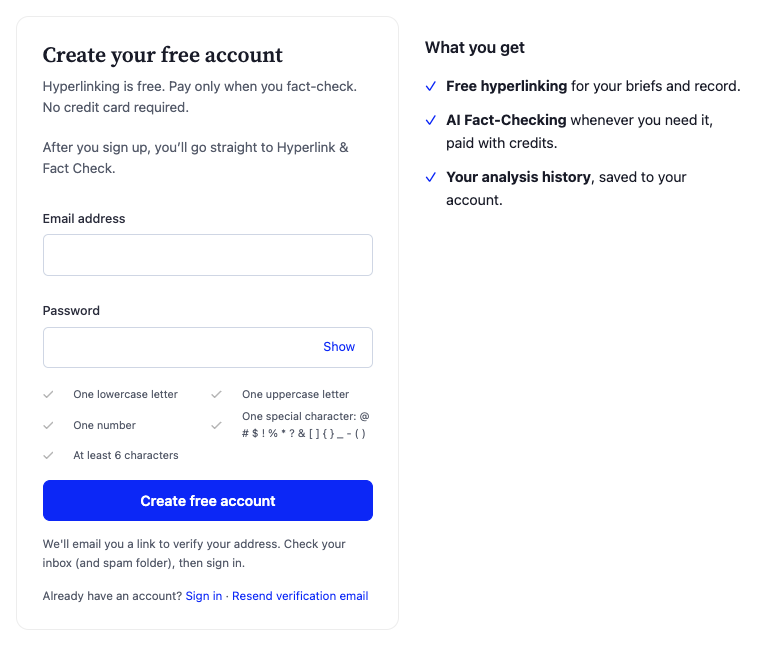
Click Sign up for free and enter your email address and a password. There's no credit card and no charge to create an account. We'll email you a link to verify your address; click it, then sign in. (No email? Check your spam folder, or use Resend verification email on the sign-in page.)
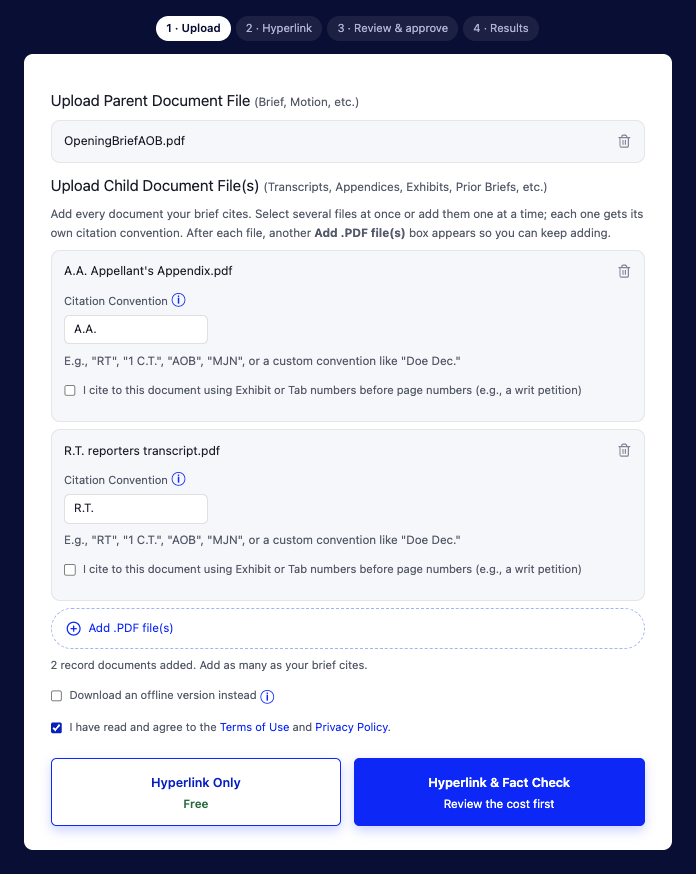
Go to Hyperlink & Fact Check in the top menu and upload:
- Parent document: the brief, motion, or other filing whose citations you want checked.
- Child documents: every document it cites, such as transcripts, appendices, exhibits, and prior briefing. Select several files at once, or add them one at a time: after each file, another Add .PDF file(s) box appears below it, so you can keep adding as many as you need. Remove one with its trash icon.
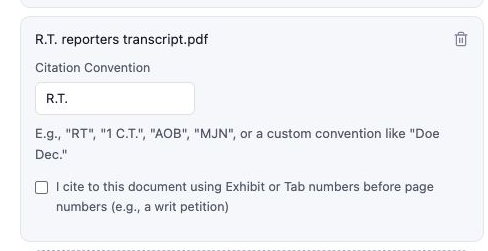
- Citation convention: under each child document, type how your brief cites it, e.g., RT, 1 C.T., or AOB. See Citation & Hyperlinking for the rules.
Then check the box to accept the Terms of Use and Privacy Policy.
Every brief is hyperlinked first; the links are what tell the AI which pages to check. Choose one button:
| Button | What happens | Cost |
|---|---|---|
| Hyperlink Only | Returns your brief with every citation linked to the page it cites. | Free |
| Hyperlink & Fact Check | Hyperlinks your brief, then goes to Review & approve (Step 4). | Hyperlinking is free; the fact-check uses credits. |
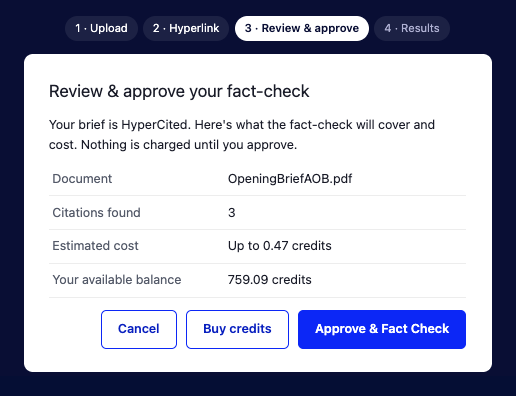
Before any fact-check runs, the Review & approve screen shows how many citations we found, what the check will cost in credits, and your balance. Nothing is charged until you click Approve & Fact Check. Need credits? Click Buy credits, or see Pricing for plans.
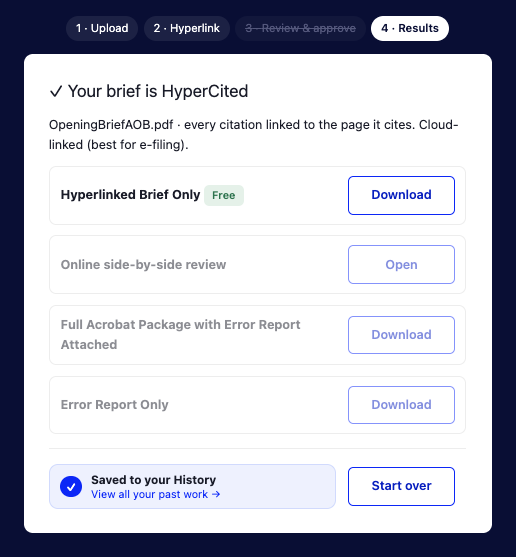
Everything you get back is on one results screen, and saved to Your History on the Hyperlink & Fact Check page.
| You get | What it is | Options |
|---|---|---|
| Online side-by-side review Fact-check | Your brief beside the record, every citation graded. | Open in your browser. |
| Hyperlinked Brief Only Free | Your brief as a PDF, every citation linked to the exact page cited. | Cloud-linked (default): small file, best for e-filing. Offline version: your documents attached in one PDF; larger file. Check the box before you submit. |
| Full Acrobat Package with Error Report Attached Fact-check | Your graded, hyperlinked brief with the error report attached, cross-linked to the record. | Download. |
| Error Report Only Fact-check | Summary of every citation checked, then each finding in detail. | Download. |
See Reading your results for how each fact-check output works.
If you chose Hyperlink Only, the results screen lets you download your hyperlinked brief, view your History, or start over. Fact-check outputs remain unavailable.
Where to next?
How to write your citations so HyperCite can link and check every one of them.
Cost, grading, and how to read each result.
HyperCite® links each citation using the conventions you give it. Because you name the conventions, there's no fixed list of acronyms to learn. Just be consistent, and HyperCite will find the right document and page.
Most users only need these three rules
One convention per document
Type it exactly as you cite it
If your brief says R.T., enter R.T., not RT.
Separate sources with semicolons
If the examples above match how you already cite, you're ready to use HyperCite®. The rest of this guide covers additional formats and less common situations.
Note: Page numbers are electronic pages, the page numbers your PDF viewer shows for the uploaded file. If those don't match the page numbers printed on the document, see Page numbers.
What a convention is
A citation convention is the part of a citation that tells the reader which document you're citing. It's usually an acronym. In the citation (C.T. p. 8; 1 C.T. pp. 45-56; RT 55:16-17; MJN p. 12; Doe Dec. p. 3), the conventions are C.T., 1 C.T., RT, MJN, and Doe Dec.
Conventions are fully customizable, and acronyms aren't required. After you add a child document, a Citation Convention field appears below it. Type the convention you used for that document.
HyperCite finds your citations whether they're in parentheses, brackets, or neither.
Linking to prior hyperlinked briefs
You can upload a brief that's already HyperCited as a child document. For example, a reply brief can link to your hyperlinked opening brief and the hyperlinked response. That creates a nested set of hyperlinked documents.
Line numbers
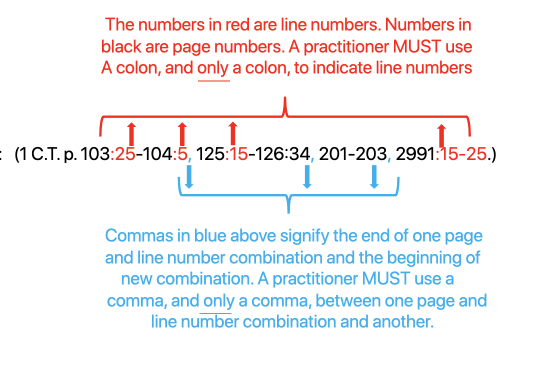
Use a colon, and only a colon, between a page and its line numbers. Use a comma, and only a comma, between one page-and-line combination and the next.
String citations, volumes & multiple sources
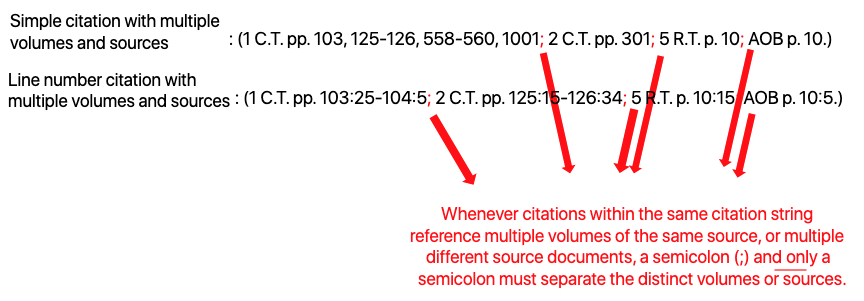
When one citation refers to several volumes of the same source, or to different documents, separate each with a semicolon, and only a semicolon.
Make your PDF page numbers match the document
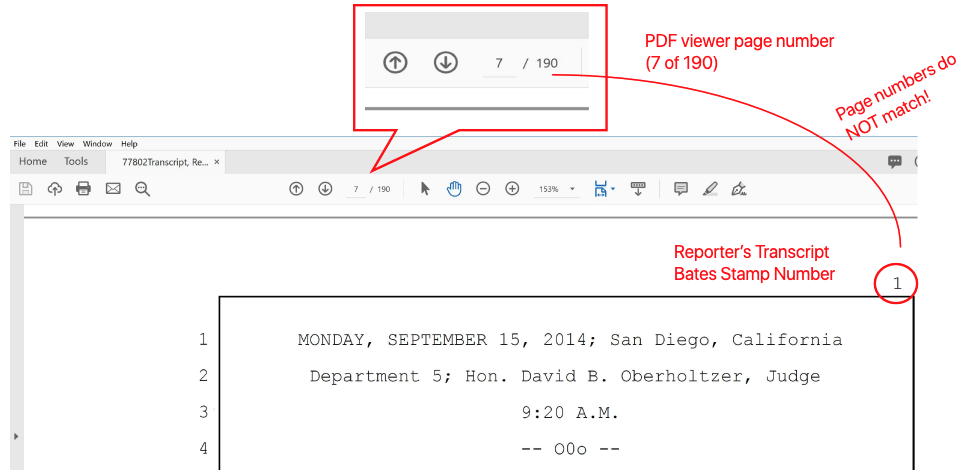
HyperCite links to the page number your PDF viewer displays, not the Bates-stamped or printed number. If the two don't match, links land on the wrong page. This happens most often in two situations.
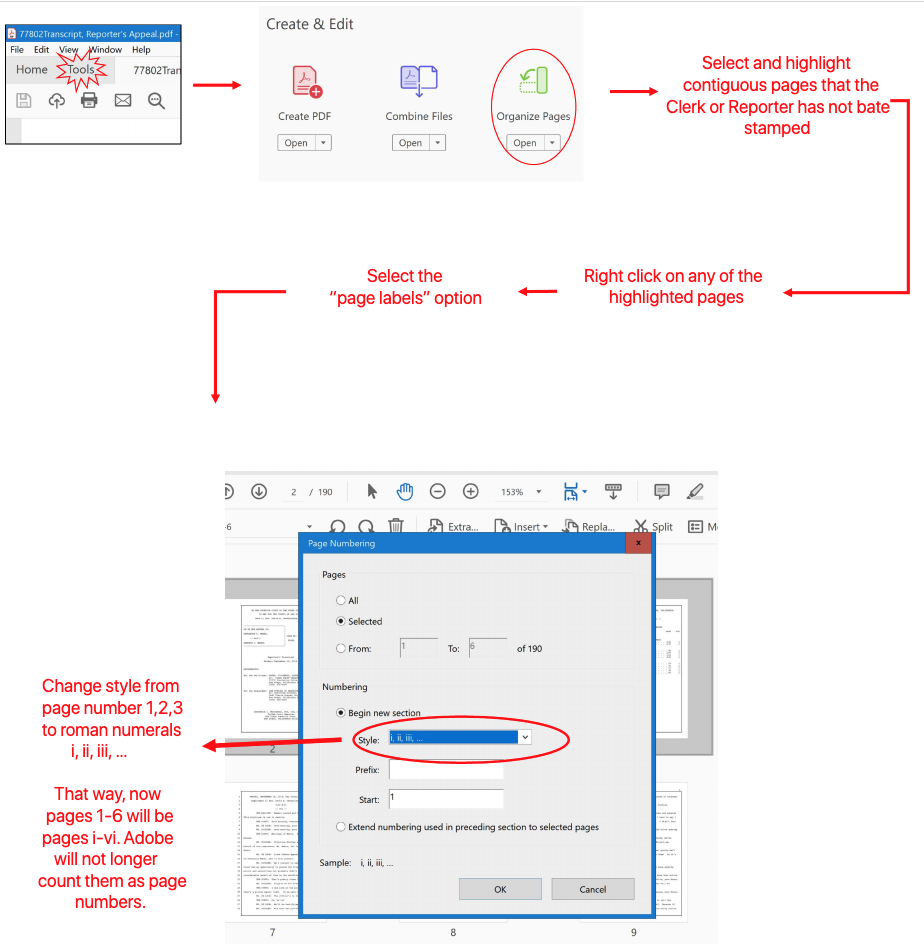
The transcript has unnumbered pages at the front
For example, a reporter left the title page and tables unnumbered and started page 1 after six pages. Relabel the unnumbered pages (e.g., as Roman numerals) so the PDF's page 1 is the document's page 1.
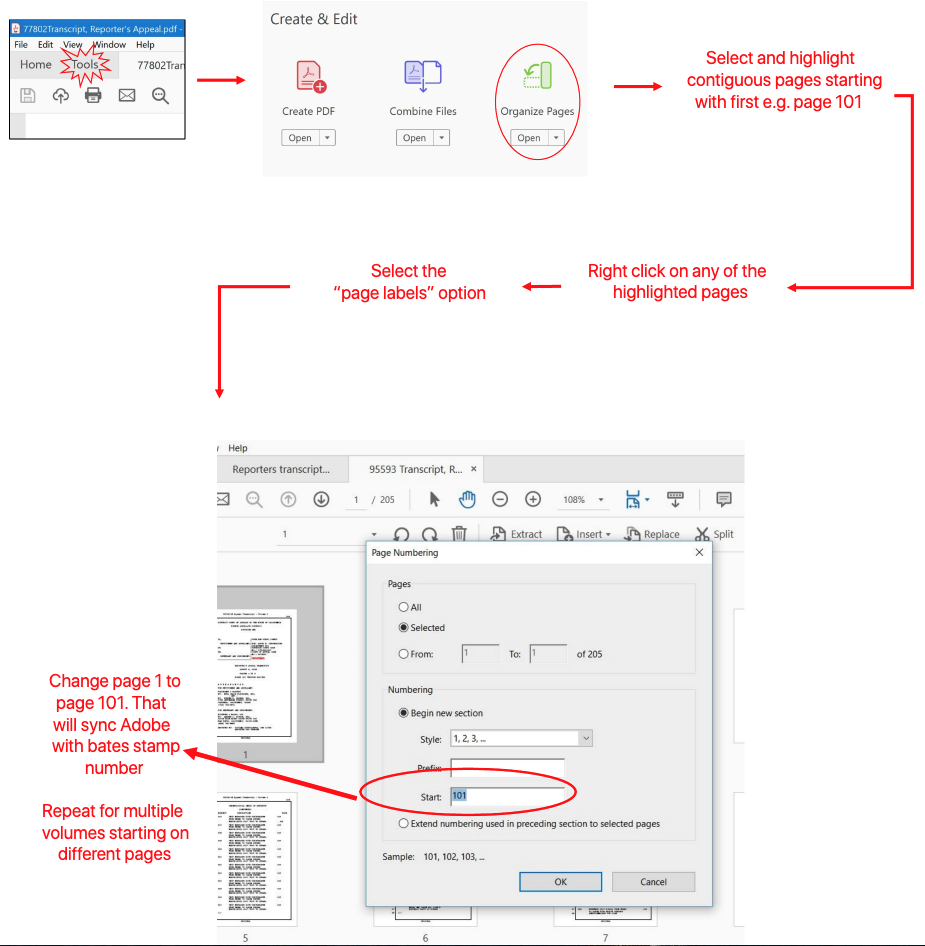
A volume doesn't start at page 1
For example, a reporter's transcript volume starts at page 101. Set a page label so the PDF's first page reads 101.
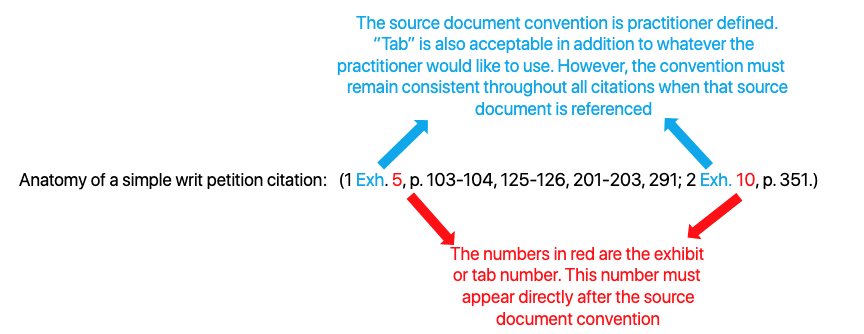
Writ petitions and other exhibit-numbered documents
If you cite a document by Exhibit or Tab number before the page number, check "I cite to this document using Exhibit or Tab numbers" under that child document. The exhibit or tab number must come directly after the convention.
- Every document your brief cites is uploaded as a child document
- Each child document has one convention, typed exactly as it appears in your brief
- Different sources and volumes separated with semicolons
- Line numbers follow a colon; page-line combinations are separated by commas
- PDF page numbers match the printed page numbers (or page labels are set)
- Exhibit/Tab box checked for exhibit-numbered documents
Then: upload your brief and record, enter your conventions, download, review the hyperlinks, and file with confidence.
No links were created at all
If HyperCite returns your document with no hyperlinks, one of these is usually the cause.
Your PDF wasn't OCR'd
This is most common when a document is scanned by hand rather than saved or exported from a word processor. Quick test: press Ctrl-F and search for a word you know is in the document. If it isn't found, the file hasn't been OCR'd.
Remedy: OCR your parent document in a PDF program, then run HyperCite again.
Your conventions don't match your brief
Remedy: Compare each convention you entered with how your brief cites that document (e.g., R.T. vs. RT), correct it, and run HyperCite again.
HyperCite is down for maintenance
Remedy: Check our homepage for a notice. If none is posted and you believe the system is down, let us know via Contact Us and wait for it to be restored.
Some citations linked, but a few were missed
Most often, a missed citation simply wasn't written the way HyperCite recognizes (see the three rules at the top of this guide), or cites a document that wasn't uploaded. You have a few options:
- Fix the citation in your word processor, re-save or re-export to PDF, and run HyperCite again. Note what was off so you write it right next time.
- Upload the missing child document with its convention, and run HyperCite again.
- Manually link just the missed citation in the final PDF with PDF-XChange (free) or Adobe Pro (paid).
A link goes to the wrong page
Check that the PDF's page numbers match the printed page numbers (see Page numbers). For exhibit-numbered documents, make sure the Exhibit/Tab box is checked.
A citation has a gray box around it
The citation points to a page that doesn't exist in that child document. Check the page number, correct it, and run HyperCite again.
Checking your brief against the record
AI Fact-Checking reviews each citation against the documents you uploaded and gives it a color-coded grade plus an explanation. To start one, see Getting Started. This page covers what it costs, how grades work, and how to read your results.
Cited cases are checked against their opinions on CourtListener, and California statutes against the official code text. Neither needs an upload.
When you choose Hyperlink & Fact Check, HyperCite hyperlinks your brief, then shows a Review & approve screen: HyperCite tells you how many citations it found and how many credits the check will cost, so you approve the cost before anything runs.
If you need more credits, go to the Pricing page and purchase enough credits to analyze your brief, or choose a plan.
How results are marked
Every checked citation is graded with a simple, intuitive color.
supported by the record
needs further investigation
in the cited document
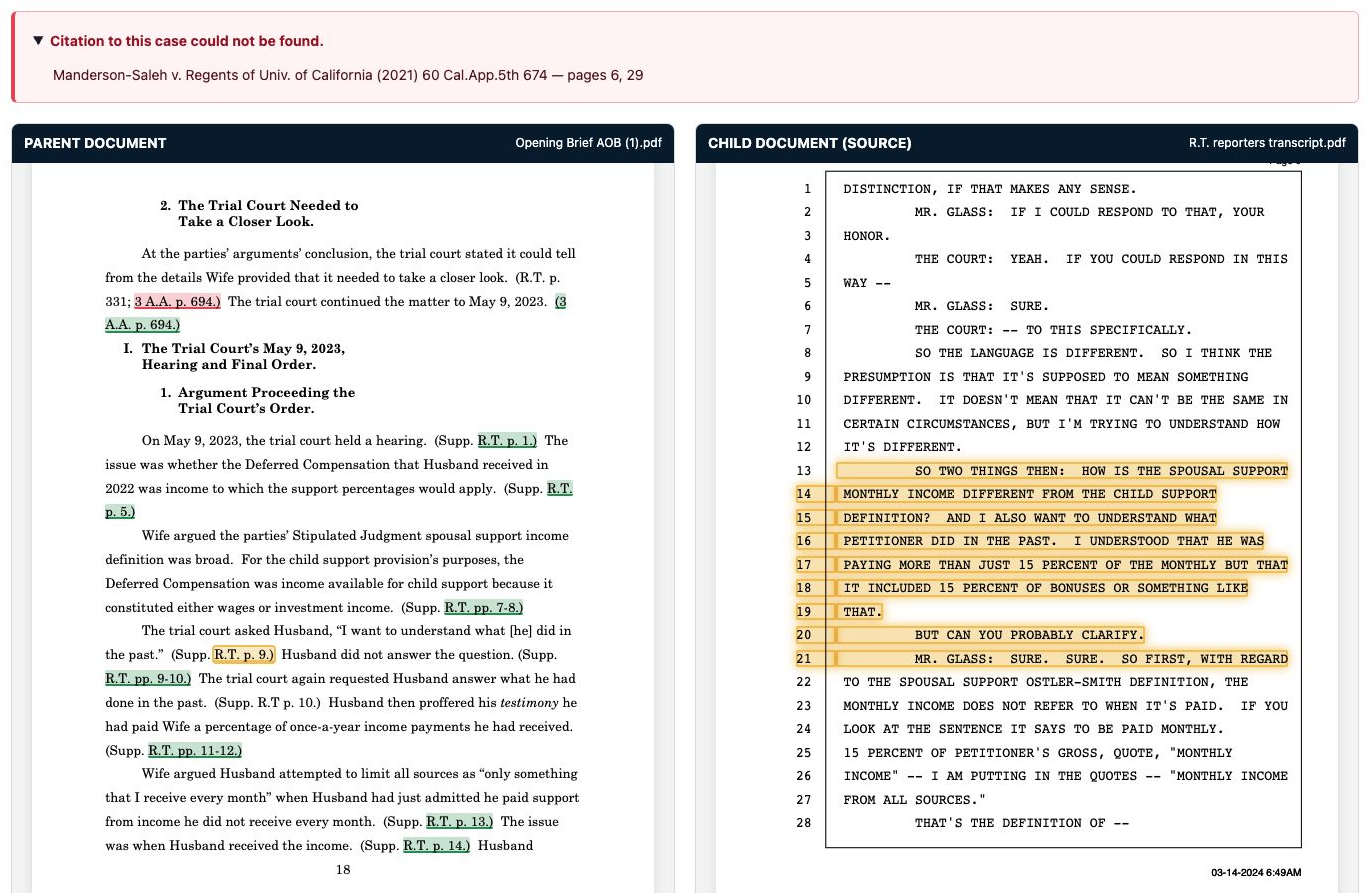
Online, side-by-side
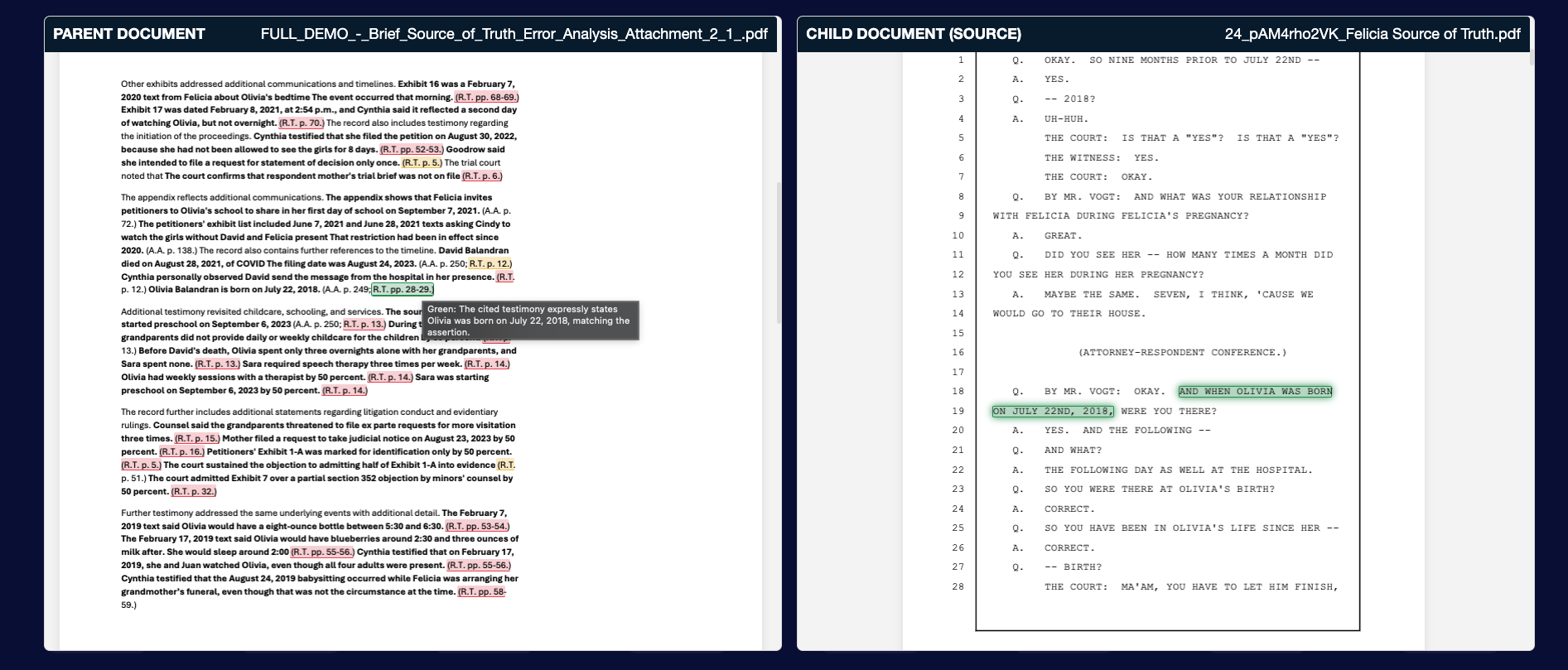
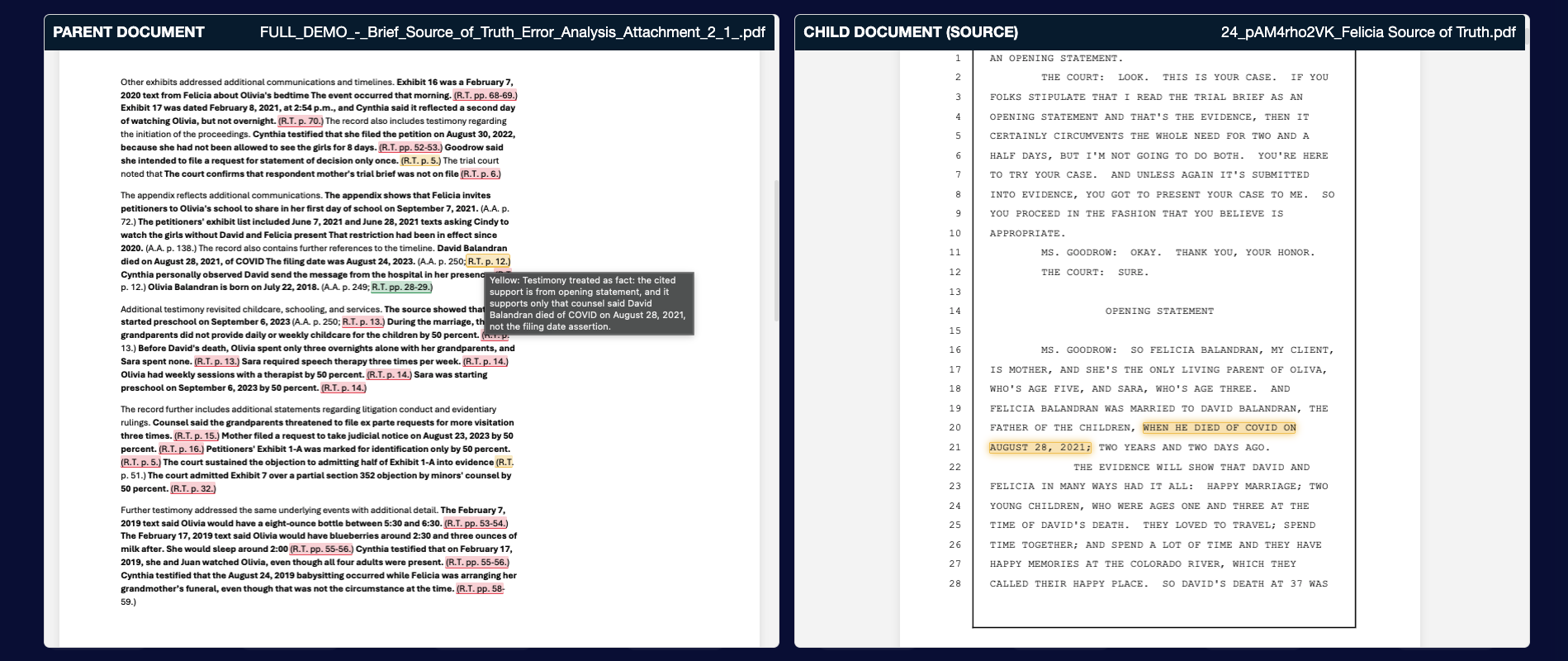
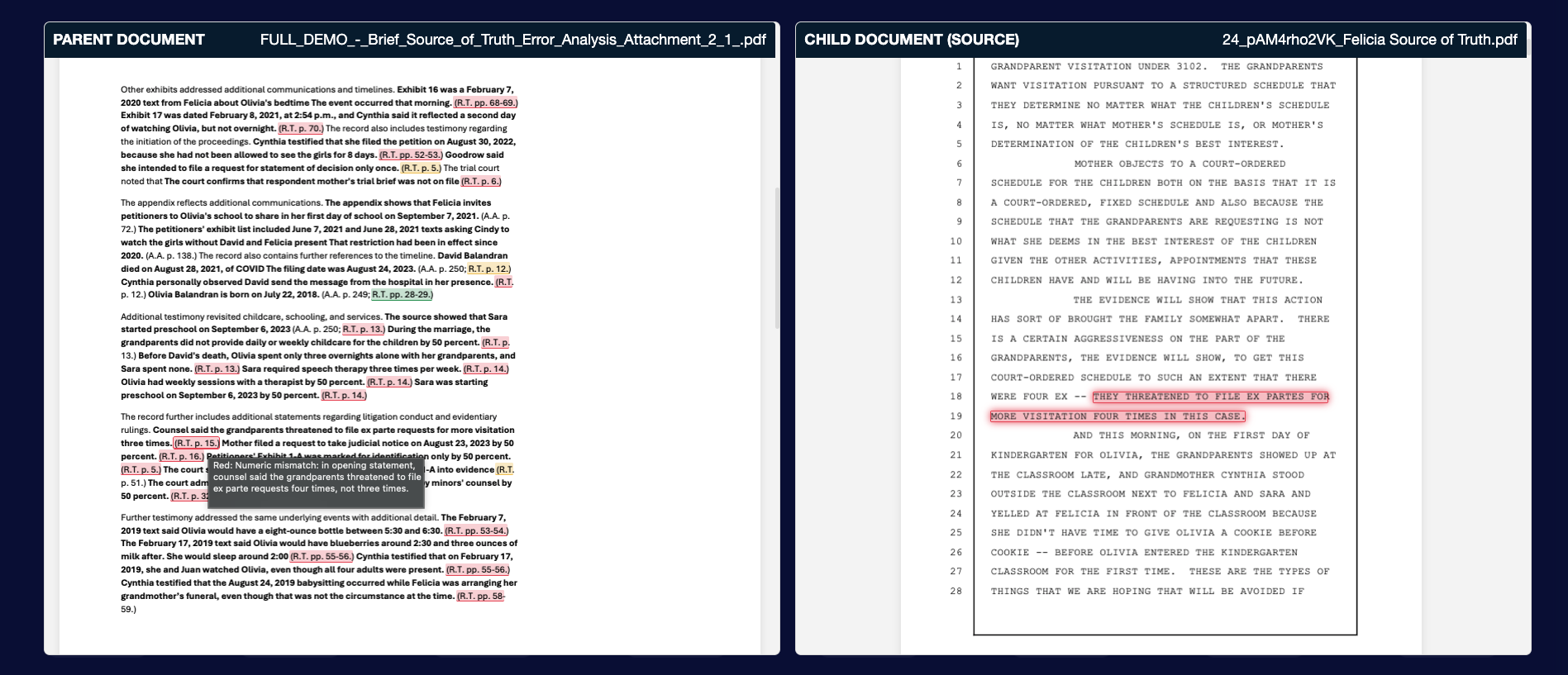
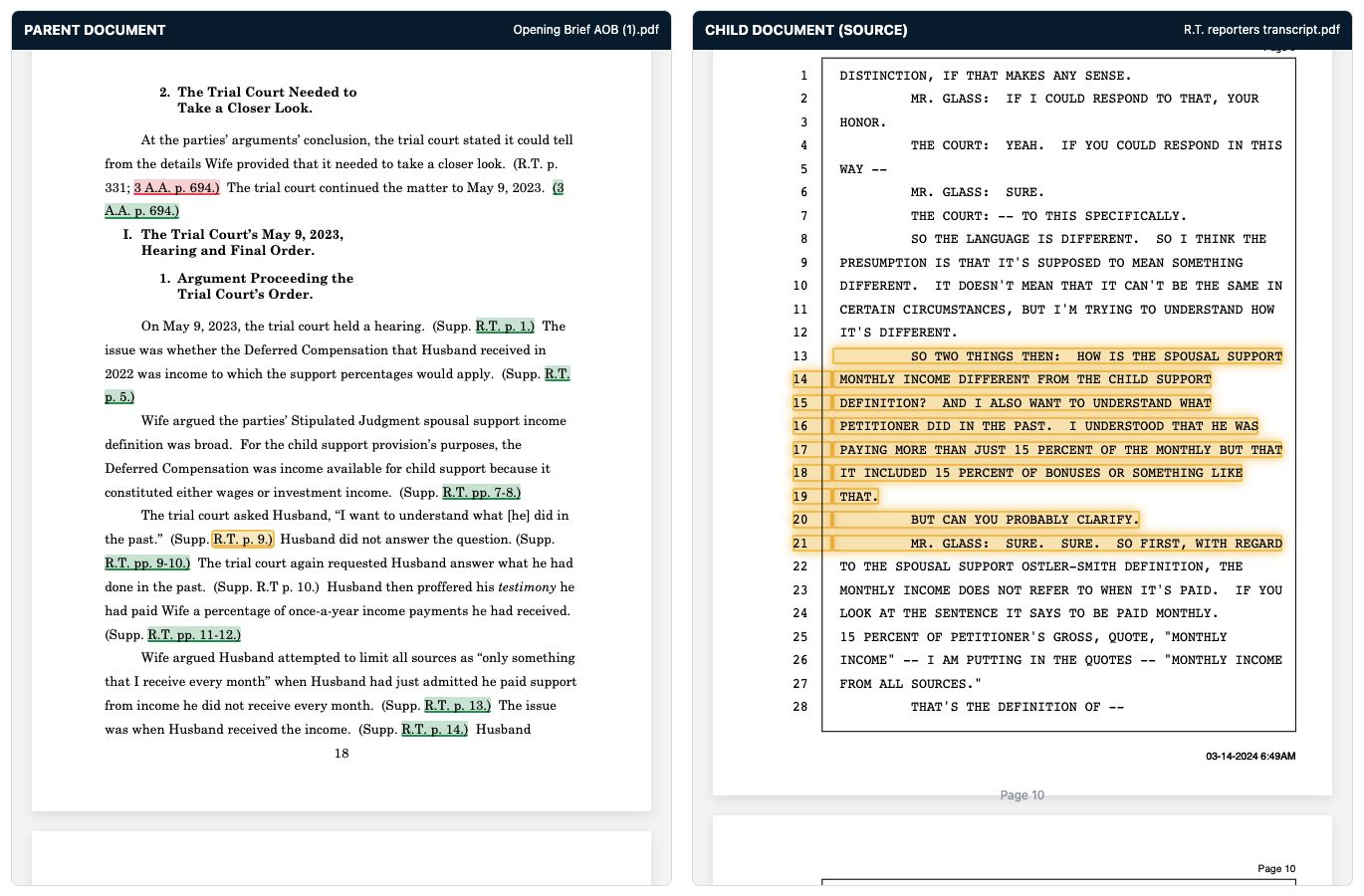
Side-by-side review opens while your fact-check is running, with your brief beside the cited record. Citations start grey with dashed underlines while they are being checked. As findings become available, citations turn green, yellow, or red. You can review these findings while the remaining citations are still being checked.
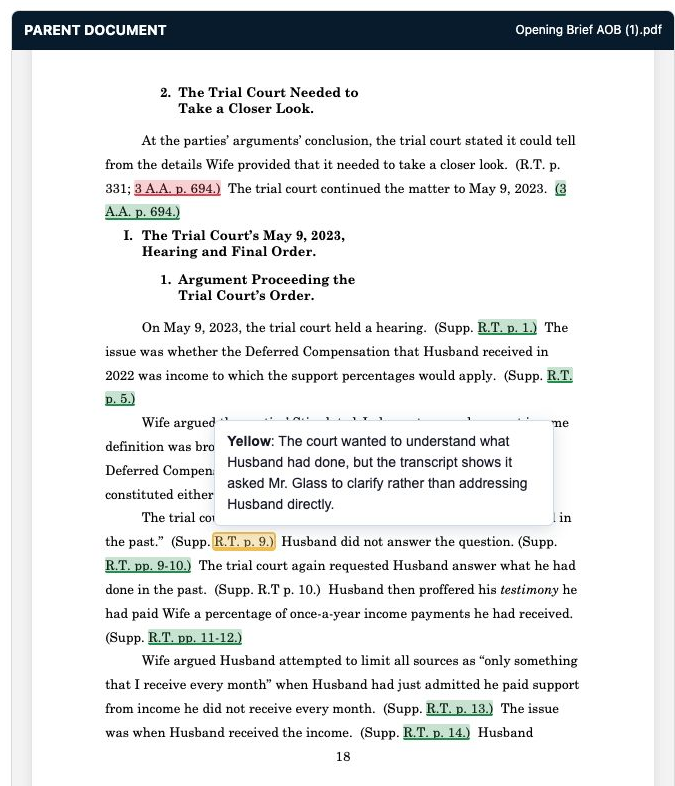
Click a checked citation in your brief to jump to the source page and highlighted evidence, and hover over it to see our reasoning. Any citation to an external case that can't be found, including hallucinated cites, is called out at the top.
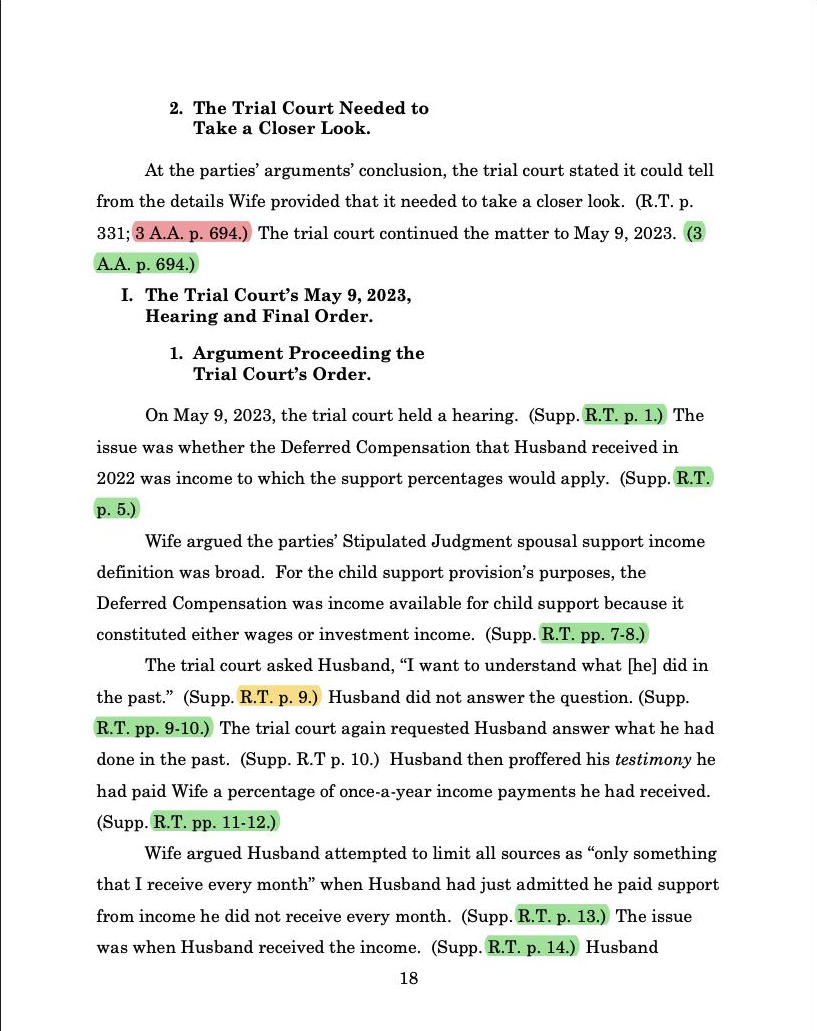
Full Acrobat Package with Error Report Attached
Prefer a file? Download the full Acrobat Package: your graded, hyperlinked brief with the error report attached. Clicking a link opens the cited page in your uploaded record; clicking the text brings up the relevant page from the attached error report.
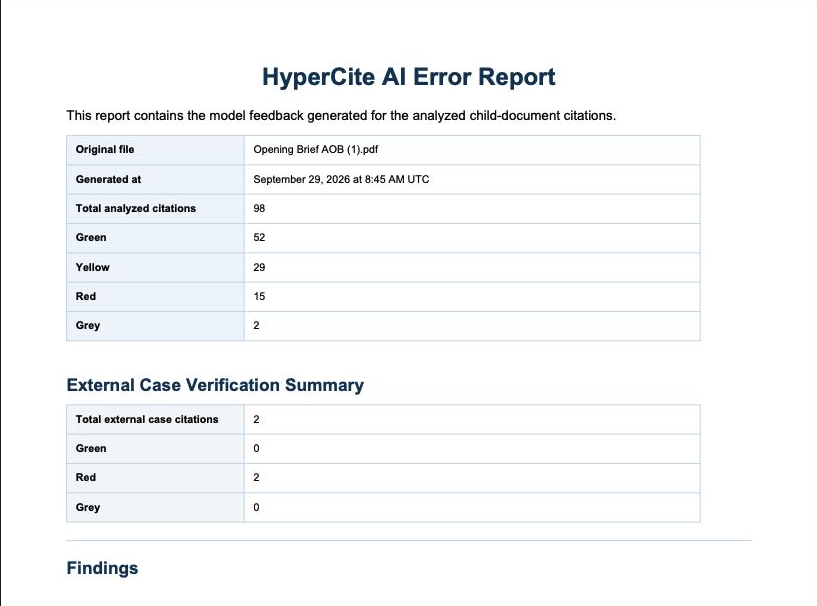
Error Report Only
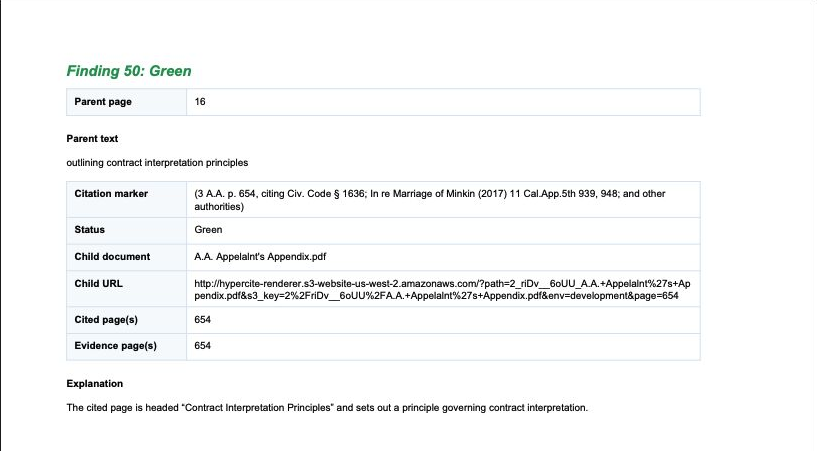
Want just the findings? Download the error report on its own. It opens with a detailed summary of total analyzed citations and a breakdown of findings by color. It then details every finding: the claim in the parent text, the references in the cited documents, and the reasoning behind the analysis.
If you disagree with a finding
HyperCite flags citations for your review. It never changes your brief. Every finding includes our reasoning and links to the exact portion of the record we relied on. Open it, compare, and apply your own judgment; the final call is always yours. A flag isn't the final word. It's a second set of eyes on every cite, so the brief you file is as strong and accurate as possible.
If the check didn't run
- No findings came back: fact-checking runs on linked citations, so confirm hyperlinking succeeded first (see the troubleshooting in Citation & Hyperlinking).
- Out of credits, or payment didn't go through: top up on the Pricing page; $1 = 1 credit.